Designing a Google Wallet pass Android · 2026 design
Try your own hero image, logo and colors. Google draws the layout; you only choose images, the background color and the text. Google calls it a generic pass, not a poster: text never sits on the photo.

Can it be glass or blur?
No, not natively. Google Wallet has no glass or blur material. The background is one solid color, there are no gradients, and text never sits on top of an image. The closest look is to bake the blur into the hero image: blur and fade its edges into the background color, as in “Baked glass edges”. It looks soft, but it’s part of the picture, so it doesn’t react to anything.


Apple vs Google: design
| Apple Wallet (iOS 27 poster) | Google Wallet (2026) | |
|---|---|---|
| Glass / blur | Yes, automatic frosted glass footer | No; only baked into the hero image |
| Artwork | One full-card image behind everything | Hero band 1032 × 812 + round logo + module images |
| Text on the photo | Yes (header, fields over glass) | Never |
| Text color | You choose | Google picks black or white |
| Background | Solid color + artwork | Solid color, full screen |
| Fonts | Apple system fonts, can’t change | Google Sans, can’t change |
| Actions | 2 of Apple’s 14 predefined | Custom modules (your text + image), app button, links |
Apple advantages
- Immersive: the photo fills the whole card
- Glass blends fields into the art
- You pick the exact text colors
Google advantages
- Always readable: text sits on a solid color, so only the background color affects contrast
- Bigger photo band, never covered by text
- Custom actions with your own words and pictures
How the cards look in the Google Wallet list. Tap one to open it. Same artwork and colors as the Apple Wallet AA cards.
The same JSON in the previous design: a card on a white page, logo top-left, hero as a strip at the bottom of the card.
Elements & limits
Every part of the pass has a letter on the mock. Hover a row to find it, click to inspect it. Google draws everything; you fill in the JSON. The only things that change the look are the colors and the images.
≈ = measured in this mock at Google Wallet's 2026 sizes; Google doesn't publish character limits for these. Longer text gets cut off (…) or wraps.
Google's "featured action": examples
Google has no feature literally called "featured actions". There are two real things:
1. App link button (appLinkData): exactly 1 per pass, label ≤ 30 chars, no icon (Google marks the logo, title and description as not supported). If an Android app is set it opens the app, otherwise the web link. That's what Badge's "1 Featured Action, ~30 chars, Android package wins" describes: it's Badge's name for this button. Ours is "Open Auto Club app".
2. Value-added modules (valueAddedModuleData): the ones with your own text and image. If the pass has exactly one, it shows on the front under the hero image. Add more and they all move to a list in the details (up to 15). These screenshots are from Google's docs:
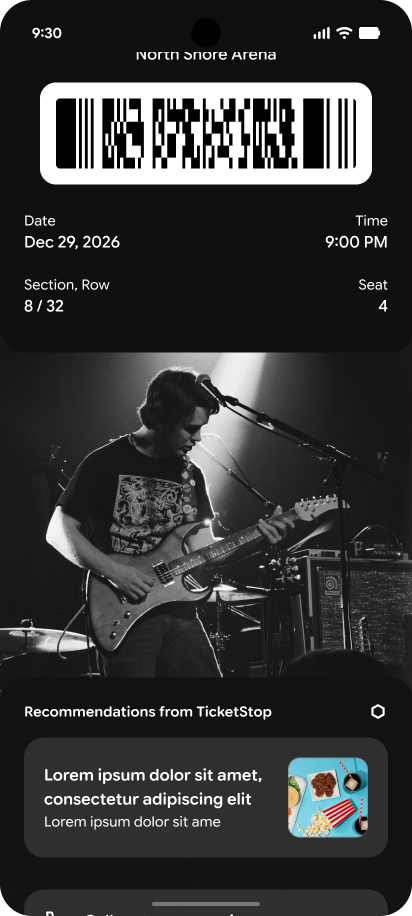
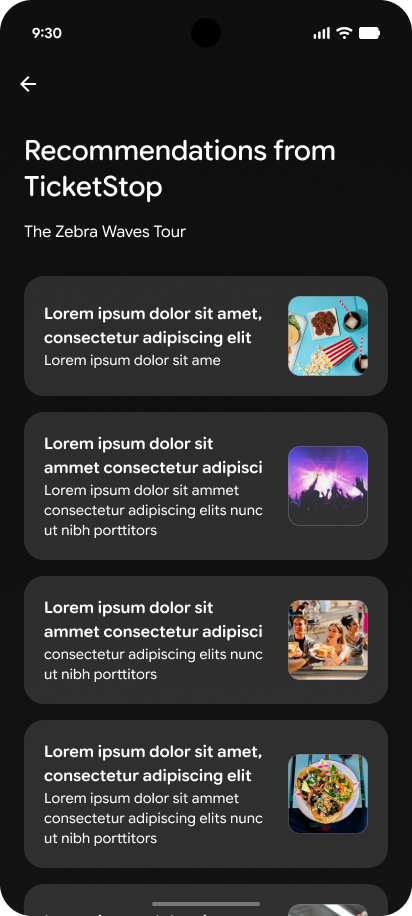
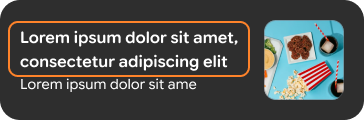
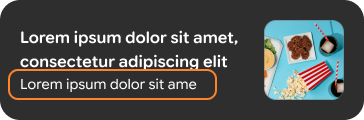
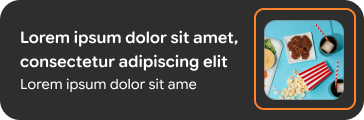
uri (required) is where a tap goes: a web link or a deep link (our Roadside one is an App Link that opens the app’s chatbot; the phone number stays in the links list). sortIndex picks which comes first (lower wins), so with one slot on the front, it decides what members see. viewConstraints.displayInterval sets start/end dates, handy for "Renew now" only near expiry. Modules can live on the class (everyone) or the object (one member).
Use the switch above the card to see both setups with our AAA modules.
Screenshots © Google, from the Google Wallet developer docs (CC BY 4.0).
- Google: Value Added Opportunities (generic passes): the 1-on-front rule, 15 modules, limits
- Google: ValueAddedModuleData API reference: fields, 10 per object/class
- Google: AppLinkData API reference: app link button, 30 chars
- Badge: Featured Actions: Badge's own product; their 1 button maps to Google's app link button
Featured actions: Apple vs Google
Google Wallet doesn't have Apple's fixed “Featured Actions”. The closest things are value-added modules (custom tappable cards), the app link button, and the links module in the details. Unlike Apple, you write the text and pick the image yourself.
| Apple Wallet (iOS 27) | Google Wallet | |
|---|---|---|
| How many | Max 2 | 1 shows on the front. Add more and they move to a list in the pass details: up to 15 shown (guide; the API reference says 10 per object/class). App link button: exactly 1 (this is what Badge calls the featured action). Links: 10 + 10. |
| Custom text | No: Wallet sets the label from the type | Yes: header (60 chars) + body (50 chars). App link button text: 30 chars. |
| Icon | No: system SF Symbol per type | Yes: your own image, shown 1:1 (square) |
| Destination | Fixed types: call, place (Maps ID), https links | Any web link or deep link, including tel: |
| Where it shows | Cards under the pass | Exactly 1 module: on the front, under the hero image. 2 or more: a list in the details. |
| Ordering / timing | Order in the array | sortIndex (lower first) and viewConstraints.displayInterval (start/end time) |
How to add a value-added module (JSON)
"valueAddedModuleData": [{
  "header": {"defaultValue": {"language": "en-US", "value": "Roadside Assistance"}},
  "body":   {"defaultValue": {"language": "en-US", "value": "Get help in the app: tow, battery, tire, lockout"}},
  "image":  {"sourceUri": {"uri": "https://…/vam-roadside.jpg"}},
  "uri": "https://www.ace.aaa.com/wallet/roadside?source=google-wallet",
  "sortIndex": 1,
  "viewConstraints": {"displayInterval": {"end": {"date": "2027-03-31T23:59:00-07:00"}}}
}]
How to add the app link button (JSON)
"appLinkData": {
  "androidAppLinkInfo": {"appTarget": {"targetUri": {"uri": "https://play.google.com/…", "description": "AAA app"}}},
  "webAppLinkInfo":     {"appTarget": {"targetUri": {"uri": "https://www.ace.aaa.com/", "description": "Website"}}},
  "displayText": {"defaultValue": {"language": "en-US", "value": "Open Auto Club app"}}
}
Google marks the per-link title, description and appLogoImage as not supported, and iOS app links aren't supported either.
Those tappable rows under the image
They look the same, but they come from different parts of the JSON. Click any of them on the pass to inspect it.
| Row | What it is | You control |
|---|---|---|
| Module with a picture | Value-added module (valueAddedModuleData) | Title (60), line (50), picture, link. 1 shows here; 2+ get their own list. |
| Open Auto Club app | App link button (appLinkData), only 1 per pass | Label (30) and where it goes. No icon or subtitle: Wallet adds the phone icon. |
| Renew… / Pay… / Find a branch | Links module (linksModuleData.uris) | Label and link only. Wallet picks the icon from the link type (phone for tel:, globe for web). 10 from the class + 10 from the object. |
| Membership number, Roadside… | Text modules (textModulesData) not used in a card row | Label and value, plain text, no links. |
| Pass settings | Wallet's own screen | Nothing. |
In this mock, the "App link button" subtitle you saw before is gone, since real Wallet doesn't show one. Icons follow the link type the same way, so "Find a branch" (a web link) gets a globe.
How the pass is laid out (2026 redesign)
Google moved passes to a full-screen look: no more card on a grey background. Your hexBackgroundColor fills the whole screen, so contrast matters more now (Google still picks white or black text for you).
Top to bottom: round logo in the middle, cardTitle under it, then the header big and bold (up to two lines). Then the barcode with its alt text, then the field rows from cardTemplateOverride (1, 2 or 3 per row). The hero image becomes a full-width band, the biggest visual on the pass, so it's worth a good picture.
Scroll down and links, the app link button and modules show as tinted, tappable rows with icons. Pass settings (notifications, archive, remove) has its own screen now: tap it in the mock.
Source: WalletWallet: Google Wallet passes redesign 2026. Google hasn't published how value-added modules look in the new design, so that part is my best guess. The JSON fields and limits didn't change.